

:quality(85):upscale()/2025/11/10/782/n/49351757/8170ecd6691224df8bd1d7.49547606_.png)
:quality(85):upscale()/2025/11/21/894/n/24155406/f08298fe6920cb78a61ca3.64427622_.jpg)
:quality(85):upscale()/2025/10/31/699/n/24155406/907a28006904d9f5870b34.67078517_.png)
:quality(85):upscale()/2025/11/26/724/n/1922153/364868b6692729990f9002.05869709_.png)









How to break free from smart TV ads and tracking

Sick of smart TVs? Here are your best options.

Credit: Aurich Lawson | Getty Images
Credit: Aurich Lawson | Getty Images
Smart TVs can feel like a dumb choice if you’re looking for privacy, reliability, and simplicity.
Today’s TVs and streaming sticks are usually loaded up with advertisements and user tracking, making offline TVs seem very attractive. But ever since smart TV operating systems began making money, “dumb” TVs have been hard to find.
In response, we created this non-smart TV guide that includes much more than dumb TVs. Since non-smart TVs are so rare, this guide also breaks down additional ways to watch TV and movies online and locally without dealing with smart TVs’ evolution toward software-centric features and snooping. We’ll discuss a range of options suitable for various budgets, different experience levels, and different rooms in your home.
Table of Contents
Our best recommendation
This is a dumb TV guide, but first, let’s briefly highlight the best recommendation for most people: Take your TV offline and plug in an Apple TV box.
Your best option.
Credit:
Jeff Dunn
Your best option.
Credit:
Jeff Dunn
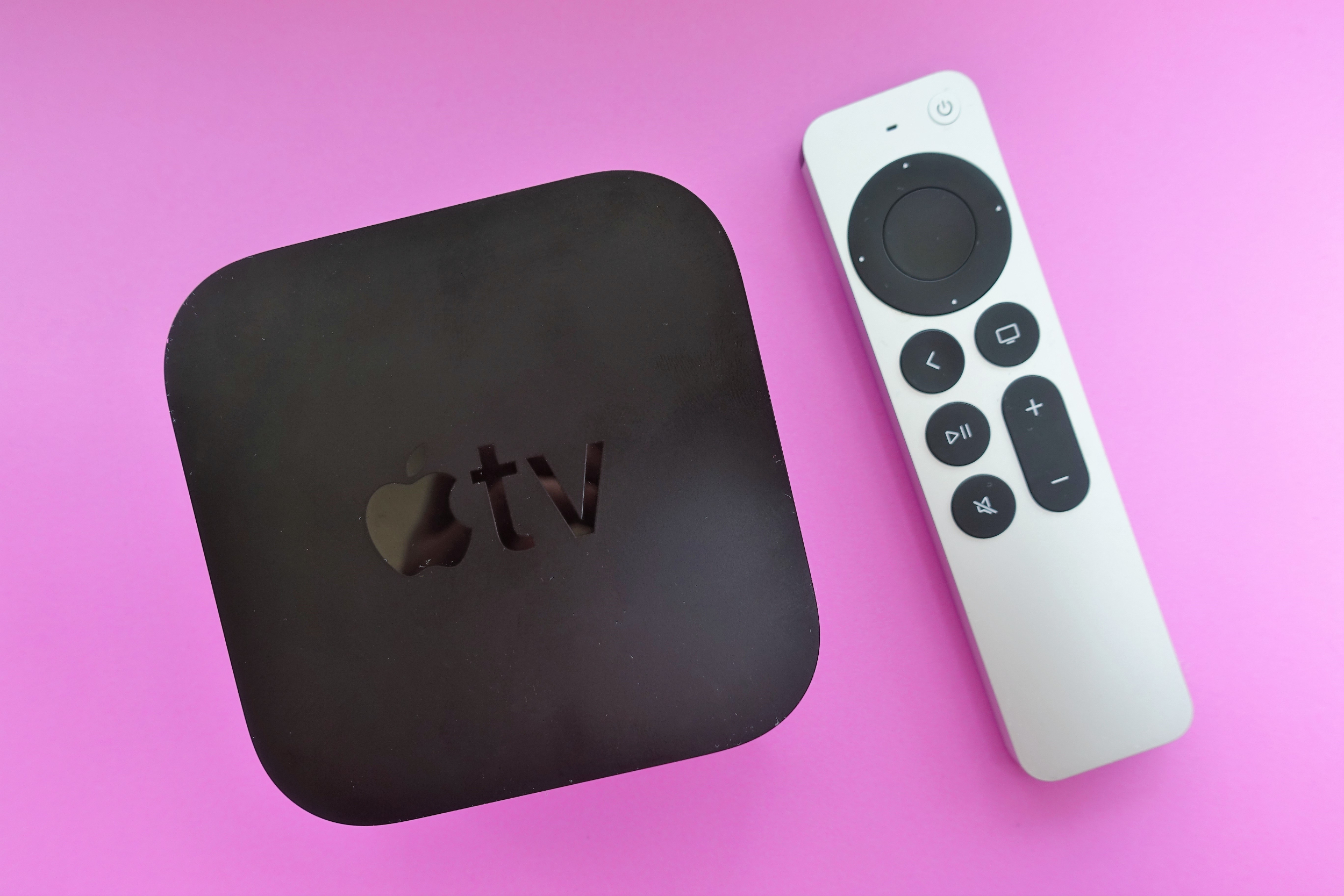
An Apple TV lets you replace smart TV software with Apple’s cleaner tvOS, and it’s more intuitive than using most smart TVs and other streaming devices. Apple’s tvOS usually runs faster and more reliably, and it isn’t riddled with distracting ads or recommendations. And there’s virtually no learning curve for family members or visitors, something that can’t always be said for DIY alternatives.
Critically, Apple TV boxes are also an easy recommendation on the privacy front. The setup process makes it simple for anyone to ensure that the device is using relatively minimal user tracking. You’re likely to use an Apple TV box with the Apple TV app or with an Apple account, which means sending some data to Apple. But Apple has a better reputation for keeping user information in-house, and Apple TV boxes don’t have automatic content recognition (ACR).
For more information, read my previous article on why Apple TVs are privacy advocates’ go-to streaming device.
Differing from other smart TV alternatives in this guide (such as a laptop), you don’t have to worry about various streaming services’ requirements for streaming in 4K or HDR with an Apple TV. But you still have to make sure your display and HDMI cable are HDCP 2.2-compliant and that you’re using HDMI 2.0 or better if you want to watch 4K or HDR content. You could even connect network-attached storage (NAS) to your Apple TV box so you can stream files from the storage device.
Plus, using a smart TV offline means you’ll have access to the latest and greatest display technologies, which is generally not the case for dumb TVs.
Things to keep in mind
One common concern about using smart TVs offline is the fear that the TV will repeatedly nag you to connect to the Internet. I’ve seen some reports of this happening over the years, but generally speaking, this doesn’t seem to be expected behavior. If you can’t find a way to disable TV notifications, try contacting support.
You may want your offline TV to keep LAN access so you can still use some smart TV features, like phone mirroring or streaming from a NAS. In this case, you can use your router (if supported) to block your TV’s IP address from connecting to the Internet.
And Google TV users should remember to set their TV to “basic TV” mode, which lets you use the TV without connecting to the Internet.
Dumb TVs are endangered
Buying a TV that doesn’t connect to the Internet is an obvious solution to avoiding smart TV tracking and ads, but that’s much easier said than done.
Smart TV OSes help TV-makers stay afloat in an industry with thin margins on hardware. Not only do they provide ad space, but they also give OS operators and their partners information on how people use their TVs—data that is extremely valuable to advertisers. Additionally, mainstream acceptance of the Internet of Things has led many people to expect their TVs to have integrated Wi-Fi. These factors have all made finding a dumb TV difficult, especially in the US.
Dumb TVs sold today have serious image and sound quality tradeoffs, simply because companies don’t make dumb versions of their high-end models. On the image side, you can expect lower resolutions, sizes, and brightness levels and poorer viewing angles. You also won’t find premium panel technologies like OLED. If you want premium image quality or sound, you’re better off using a smart TV offline. Dumb TVs also usually have shorter (one-year) warranties.
Any display or system you end up using needs HDCP 2.2 compliance to play 4K or HDR content via a streaming service or any other DRM-protected 4K or HDR media, like a Blu-ray disc.
Best ways to find a dumb TV
Below are the brands I’ve identified as most likely to have dumb TVs available for purchase online as of this writing.
Emerson
I was able to find the greatest number of non-smart TVs from Emerson. Emerson is a Parsippany, New Jersey, electronics company that was founded in 1948.
As of this writing, Emerson’s dumb TV options range from 7-inch portable models to 50-inch 4K TVs. Its TVs are relatively easy to get since they’re sold directly and through various online retailers, including Amazon, Home Depot, Best Buy, and, for some reason, Shein.
Westinghouse
Another company still pushing non-smart TVs is Westinghouse, a Pittsburgh-headquartered company founded in 1886. In addition to other types of electronics and home goods, Westinghouse also has an industrial business that includes nuclear fuel.
Westinghouse’s dumb TVs max out at 32 inches and 720p resolution, but some of them also have a built-in DVD player. You can find Westinghouse’s dumb TVs on Amazon. However, Westinghouse seems to have the most dubious reputation of these brands based on online chatter.
Sceptre
Sceptre, a Walmart brand, still has a handful of dumb TVs available. I’ve noticed inventory dwindle in recent months, but Walmart usually has at least one Sceptre dumb TV available.
Amazon search
Outside the above brands, your best bet for finding a non-smart TV is Amazon. I’ve had success searching for “dumb TVs” and have found additional results by searching for a “non-smart TV.”
Projectors
For now, it’s not hard to find a projector that doesn’t connect to the Internet or track user activity. And there are options that are HDCP 2.2-compliant so you can project in 4K and HDR.
Things to keep in mind
Projectors aren’t for everyone. They still require dim rooms and a decent amount of physical space to produce the best image. (To see how much space you need for a projector, I recommend RTINGS’ handy throw calculator.)
The smart-tech bug has come for projectors, too, though, and we’ve started seeing more smart projectors released over the past two years.
Computer monitors
If you want a dumb display for watching TV, it’s cheaper to buy a smart TV and keep it offline than it is to get a similarly specced computer monitor. But there are benefits to using a monitor instead of a dumb TV or an offline smart TV. (Of course, this logic doesn’t carry over to “smart monitors.”)
When it comes to smaller screens, you’ll have more options if you look at monitors instead of TVs. This is especially true if you want premium features, like high refresh rates or quality speakers, which are hard to find among TVs that are under 42 inches.
Monitor vendors are typically more forthcoming about product specs than TV makers are. It’s hard to find manufacturer claims about a TV’s color gamut, color accuracy, or typical brightness, but a computer monitor’s product page usually has all this information. It’s also easier to find a monitor with professional-grade color accuracy than a TV with the same, and some monitors have integrated calibration tools.
Things to keep in mind
Newer and advanced types of display technologies are rarer in monitors. This includes OLED, Mini LED, and Micro RGB. And if you buy a new monitor, you’ll probably need to supply your own speakers.
A computer monitor isn’t a TV, so there’s no TV tuner or way to use an antenna. If you really wanted to, you could get a cable box to work with a monitor with the right ports or adapters. People are streaming more than they’re watching broadcast and cable channels, though, so you may not mind the lack of traditional TV capabilities.
Digital signage
Digital signage displays are purpose-built for displaying corporate messages, often for all or most hours of the day. They typically have features that people don’t need for TV watching, such as content management software. And due to their durability and warranty needs, digital signage displays are often more expensive than similarly specced computer monitors.
Again, it’s important to ensure that the digital signage is HDCP 2.2-compliant if you plan to watch 4K or HDR.
Things to keep in mind
But if you happen to come across a digital signage display that’s the right size and the right price, is there any real reason why you shouldn’t use it as a TV? I asked Panasonic, which makes digital signage. A spokesperson from Panasonic Connect North America told me that digital signage displays are made to be on for 16 to 24 hours per day and with high brightness levels to accommodate “retail and public environments.”
The spokesperson added:
Their rugged construction and heat management systems make them ideal for demanding commercial use, but these same features can result in higher energy consumption, louder operation, and limited compatibility with home entertainment systems.
Panasonic’s representative also pointed out that real TVs offer consumer-friendly features for watching TV, like “home-optimized picture tuning, simplified audio integration, and user-friendly menu interfaces.”
If you’re fine with these caveats, though, and digital signage is your easiest option, there isn’t anything stopping you from using one to avoid smart TVs.
What to connect to your dumb TV
After you’ve settled on an offline display, you’ll need something to give it life. Below is a breakdown of the best things to plug into your dumb TV (or dumb display) so you can watch TV without your TV watching you.
Things to keep in mind
If you’re considering using an older device for TV, like a used laptop, make sure it’s HDCP 2.2-compliant if you want to watch 4K or HDR.
And although old systems and displays and single-board computers can make great dumb TV alternatives, remember that these devices need HDMI 2.0 or DisplayPort 1.2 or newer to support 4K at 60 Hz.
What to connect: a Phone
Before we get into more complex options for powering your dumb TV, let’s start with devices you may already own.
It’s possible to connect your phone to a dumb display, but doing so is harder than connecting a PC. You’d need an adapter, such as a USB-C (or Lightning) Digital AV Adapter.
You can use a Bluetooth mouse and keyboard to control the phone from afar. By activating Assistive Touch, I’ve even been able to use my iPhone with a mouse that claims not to support iOS. With an extra-long cable, you could potentially control the phone from your lap. That’s not the cleanest setup, though, and it would look odd in a family room.
Things to keep in mind
If your phone is outputting to your display, you can’t use it to check your email, read articles, or doomscroll while you watch TV. You can fix this by using a secondary phone as your streaming device.
If you’re using a phone to watch a streaming service, there’s a good chance you won’t be watching in 4K, even if your streaming subscription supports it. Netflix, for example, limits resolution to 1080p or less (depending on the model) for iPhones. HDR is supported across iPhone models but not with Android devices.
Screen mirroring doesn’t always work well with streaming services and phones. Netflix, for instance, doesn’t support AirPlay or Android phone casting. Disney+ supports Chromecast and AirPlay, but AirPlay won’t work if you subscribe to Disney+ with ads (due to “technical reasons“).
What to connect: A laptop
A laptop is an excellent smart TV alternative that’s highly customizable yet simple to deploy.
Most mainstream streaming providers that have dedicated smart TV apps, like Netflix and HBO Max, have PC versions of their apps. And most of those services are also available via web browsers, which work much better on computers than they do on smart TVs. You can also access local files—all via a user interface that you and anyone else watching TV is probably familiar with already.
With a tethered laptop, you can quickly set up a multi-picture view for watching two games or shows simultaneously. Multi-view support on streaming apps is extremely limited right now, with only Peacock and dedicated sports apps like ESPN and MLB TV offering it.
A laptop also lets you use your dumb TV for common PC tasks, like PC gaming or using productivity software (sometimes you just want to see that spreadsheet on a bigger screen).
Things to keep in mind
Streaming in 4K or HDR sometimes comes with specific requirements that are easy to overlook. Some streaming services, for example, won’t stream in 4K on certain web browsers—or with any web browser at all.
Streaming services sometimes have GPU requirements for 4K and HDR streaming. For example, to stream Netflix in 4K or HDR from a browser, you need Microsoft Edge and an Intel 7th Generation Core or AMD Ryzen CPU or better, plus the latest graphics drivers. Disney+ doesn’t allow 4K HDR streaming from any web browsers. Streaming 4K content in a web browser might also require you to acquire the HEVC/H.265 codec, depending on your system.
If 4K or HDR streaming is critical to you, it’s important to check your streaming providers’ 4K and HDR limits; it may be best to rely on a dedicated app.
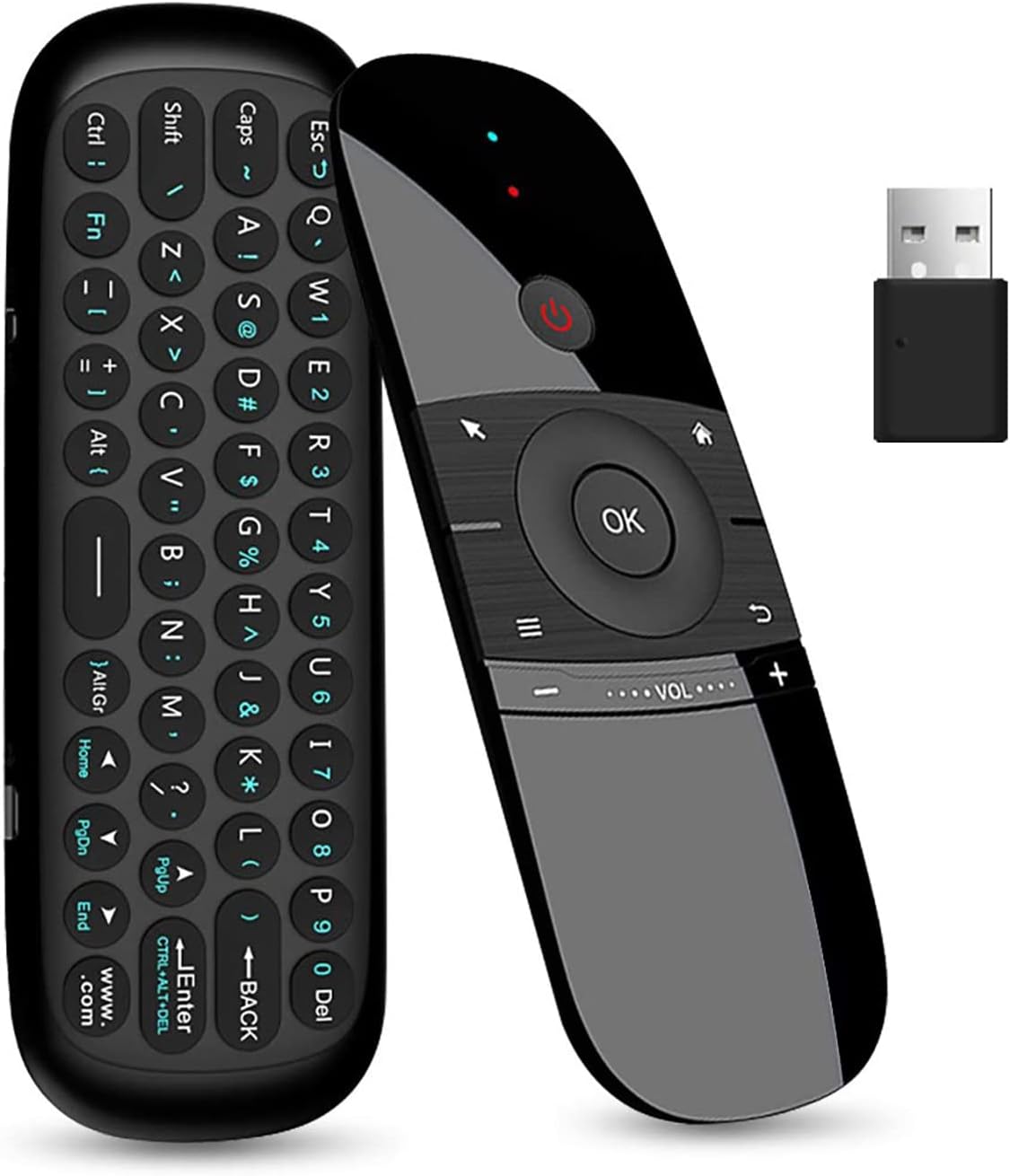
If you want to be able to comfortably control your computer from a couch, you’ll also need to invest in some hardware or software. You can get away with a basic Bluetooth mouse and keyboard. Air mice are another popular solution.
The WeChip W1 air mouse.
Credit:
WeChip/Amazon
The WeChip W1 air mouse.
Credit:
WeChip/Amazon
If you don’t want extra gadgets taking up space, software like the popular Unified Remote (for iOS and Android) can turn your phone into a remote control for your computer. It also supports Wake-On-LAN.
You may encounter hiccups with streaming availability. Most streaming services available on smart TVs are also accessible via computers, but some aren’t. Many FAST (free ad-supported streaming television) services and channels, such as the Samsung TV Plus service and Filmrise FAST app and channel, are only available via smart TVs. And many streaming services’ apps, including Netflix and Disney+, aren’t available on macOS. If you’re using a very old computer, you might run into compatibility issues with streaming services. Netflix’s PC app, for example, requires Windows 10 or newer, and if you stream Netflix via a browser on a system running an older OS, you’re limited to SD resolution.
And while a laptop and dumb display setup can keep snooping TVs out of your home, there are obviously lots of user tracking and privacy concerns with web browsers, too. You can alleviate some concerns by researching the browsers you want to use for watching TV.
What to connect: A home theater PC
For a more permanent setup, consider a dedicated home theater PC (HTPC). They don’t require beefy, expensive specs and are more flexible than smart TV platforms in terms of software support and customization.
You can pick a system that fits on your living room console table, like a mini PC, or match your home’s aesthetics with a custom build. Raspberry Pis are a diminutive solution that you can dress up in a case and use for various additional tasks, like streaming games from your gaming PC to your TV or creating an AirPlay music server for streaming Spotify and other online music and local music to AirPlay-compatible speakers.
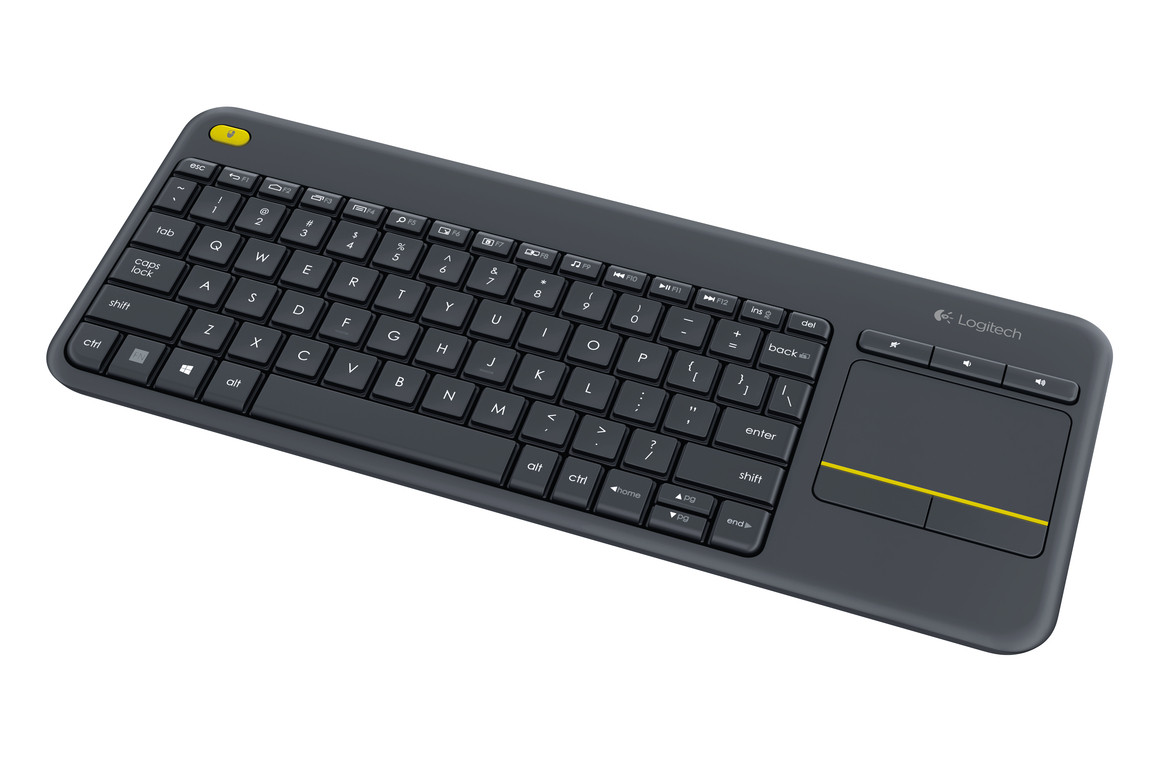
The right accessories can take an HTPC to the next level. You can use an app like TeamViewer or the more TV-remote-like Unified Remote to control your PC with your phone. But investing in dedicated hardware is worthwhile for long-term and multi-person use. Bluetooth keyboards and mice last a long time without needing a charge and can even be combined into one device.
Logitech’s wireless K400 combines a keyboard with a touchpad.
Credit:
Logitech
Logitech’s wireless K400 combines a keyboard with a touchpad.
Credit:
Logitech
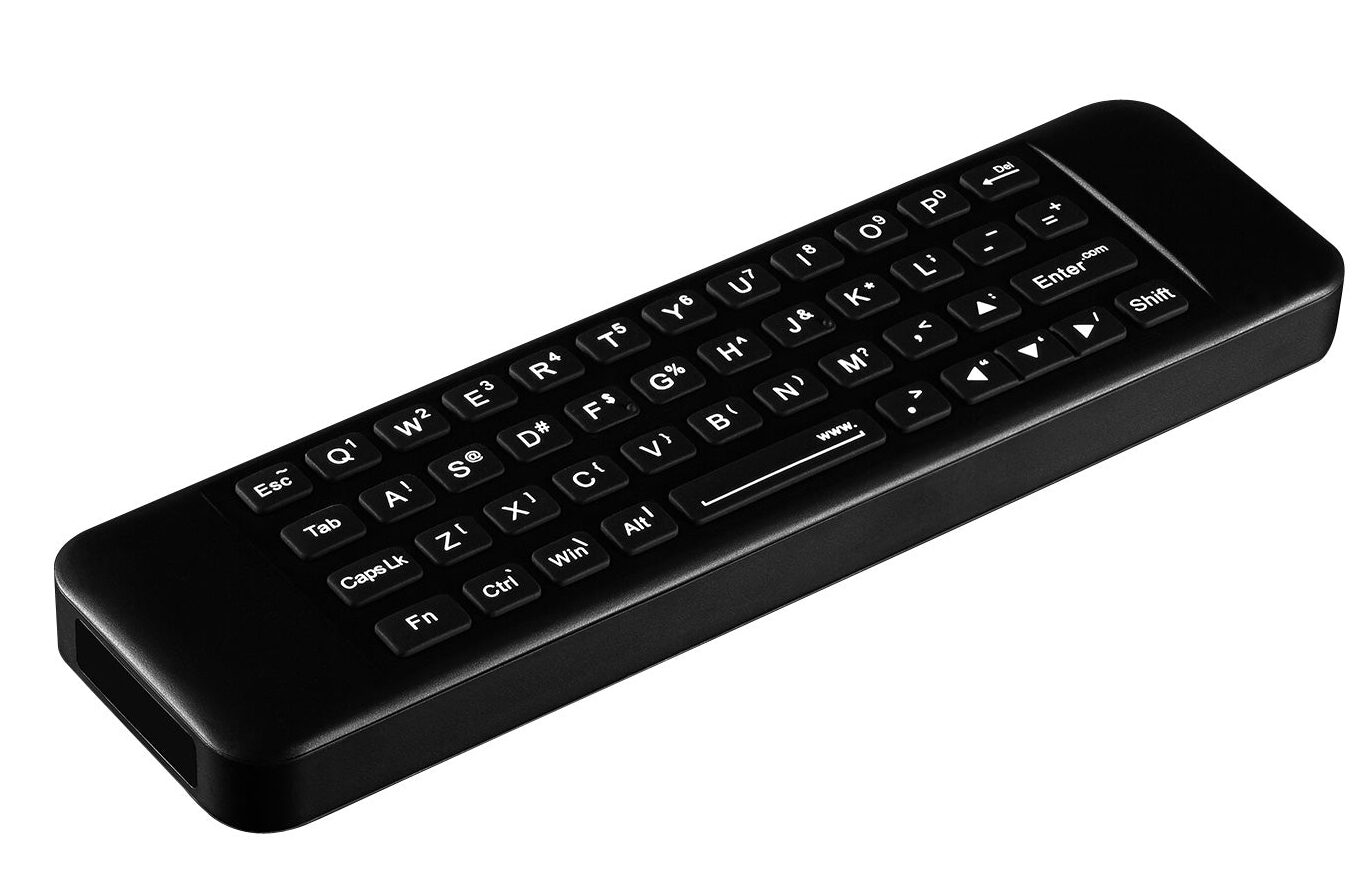
Other popular options for HTPC control are air remotes and the Flirc USB, which plugs into a computer’s USB-A port to enable IR remote control. Speaking of USB ports, you could use them to connect a Blu-ray/DVD player or gaming controller to your HTPC. If you want to add support for live TV, you can still find PCIe over-the-air (OTA) tuner cards.
The Pepper Jobs W10 GYRO Smart Remote is a popular air remote for controlling Windows 10 PCs.
Credit:
Pepper Jobs
The Pepper Jobs W10 GYRO Smart Remote is a popular air remote for controlling Windows 10 PCs.
Credit:
Pepper Jobs
Helpful software for home theater PCs
With the right software, an HTPC can be more useful to a household than a smart TV. You probably already have some apps in mind for your ideal HTPC. That makes this a fitting time to discuss some solid software that you may not have initially considered or that would be helpful to recommend to other cord cutters.
If you have a lot of media files you’d like to easily navigate through on your HTPC, media server software, such as Plex Media Server, is a lifesaver. Plex specifically has an app streamlined for HTPC use. The company has taken some criticism recently due to changes like new remote access rules, higher prices, and a foray into movie rentals. Although Plex is probably the most common and simplest media server software, alternatives like Jellyfin have been gaining popularity lately and are worth checking out.
Whichever media server software you use, consider pairing it with a dedicated NAS. NAS media servers are especially helpful if you want to let people, including those outside of your household, watch stuff from your media library at any time and without having to keep a high-power system turned on 24/7.
You can stream files from your NAS to a dumb TV by setting up a streaming system—such as a Raspberry Pi, Nvidia Shield, or Apple TV box—that connects to the dumb display. That device can then stream video from the NAS by using Network File System or the Infuse app, for example.
What to connect: An antenna
Nowadays, you can watch traditional, live TV channels over the Internet through over-the-top streaming services like YouTube TV and Sling TV. But don’t underestimate the power of TV antennas, which have improved in recent years and let you watch stuff for free.
This year, Horowitz Research surveyed 2,200 US adults and found that 19 percent of respondents were still using a TV antenna.
If you haven’t checked them out in a while, you might be surprised by how sleek bunny ears look now. Many of the best TV antennas now have flat, square shapes and can be mounted to your wall or windowsill.
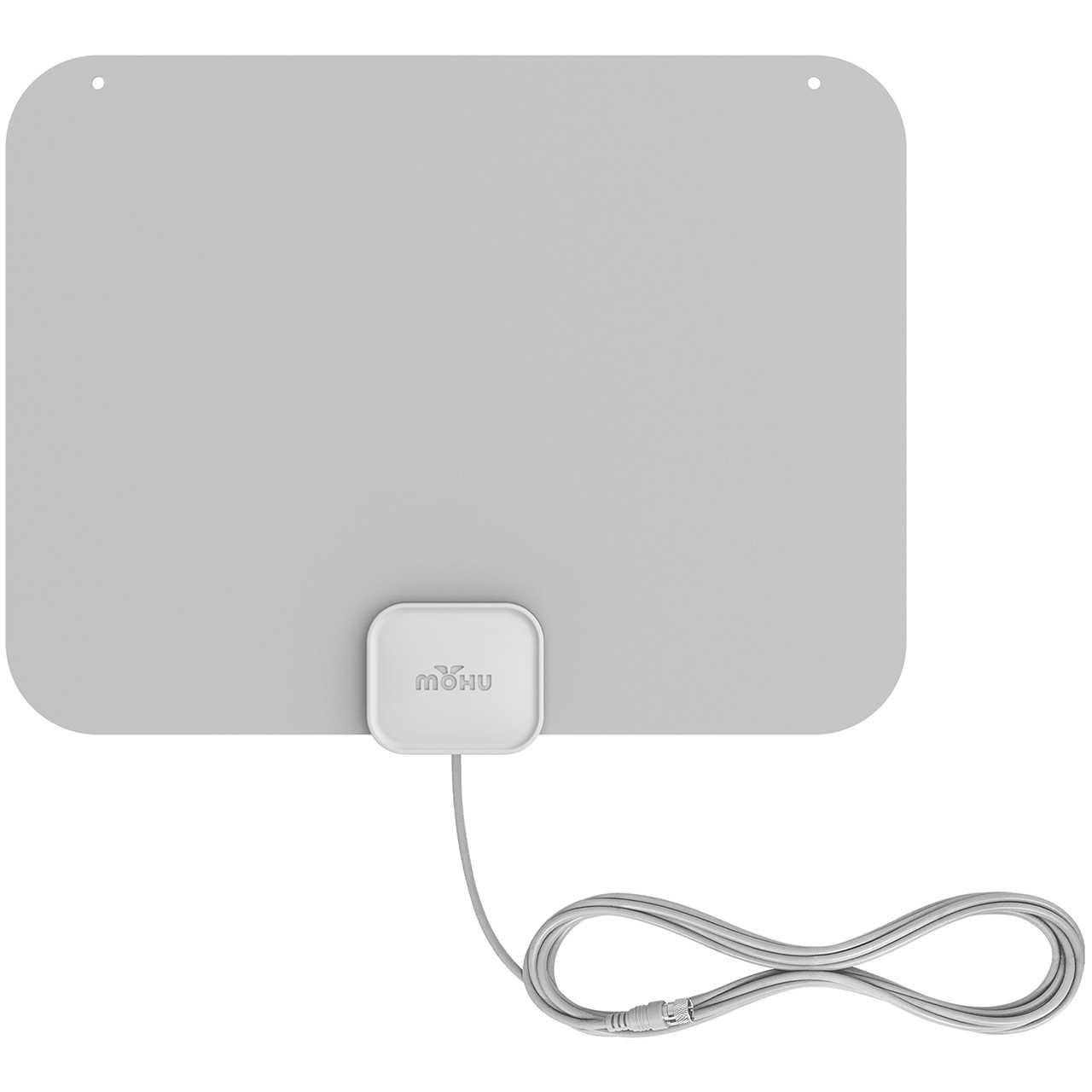
Mohu’s Leaf antenna. Bye, bye, bunny ears.
Mohu’s Leaf antenna. Bye, bye, bunny ears. Credit: Mohu
The best part is that companies can’t track what you watch with an antenna. As Nielsen said in a January 2024 blog post:
Big data sources alone can’t provide insight into the viewing behaviors of the millions of viewers who watch TV using a digital antenna.
Antennas have also gotten more versatile. For example, in addition to local stations, an antenna can provide access to dozens of digital subchannels. They’re similar to the free ad-supported television channels gaining popularity with smart TVs users today, in that they often show niche programming or a steady stream of old shows and movies with commercial breaks. You can find a list of channels you’re likely to get with an antenna via this website from the Federal Communications Commission.
TV and movies watched through an antenna are likely to be less compressed than what you get with cable, which means you can get excellent image quality with the right setup.
You can also add DVR capabilities, like record and pause, to live broadcasts through hardware, such as a Tablo OTA DVR device or Plex DVR, a subscription service that lets antenna users add broadcast TV recordings to their Plex media servers.
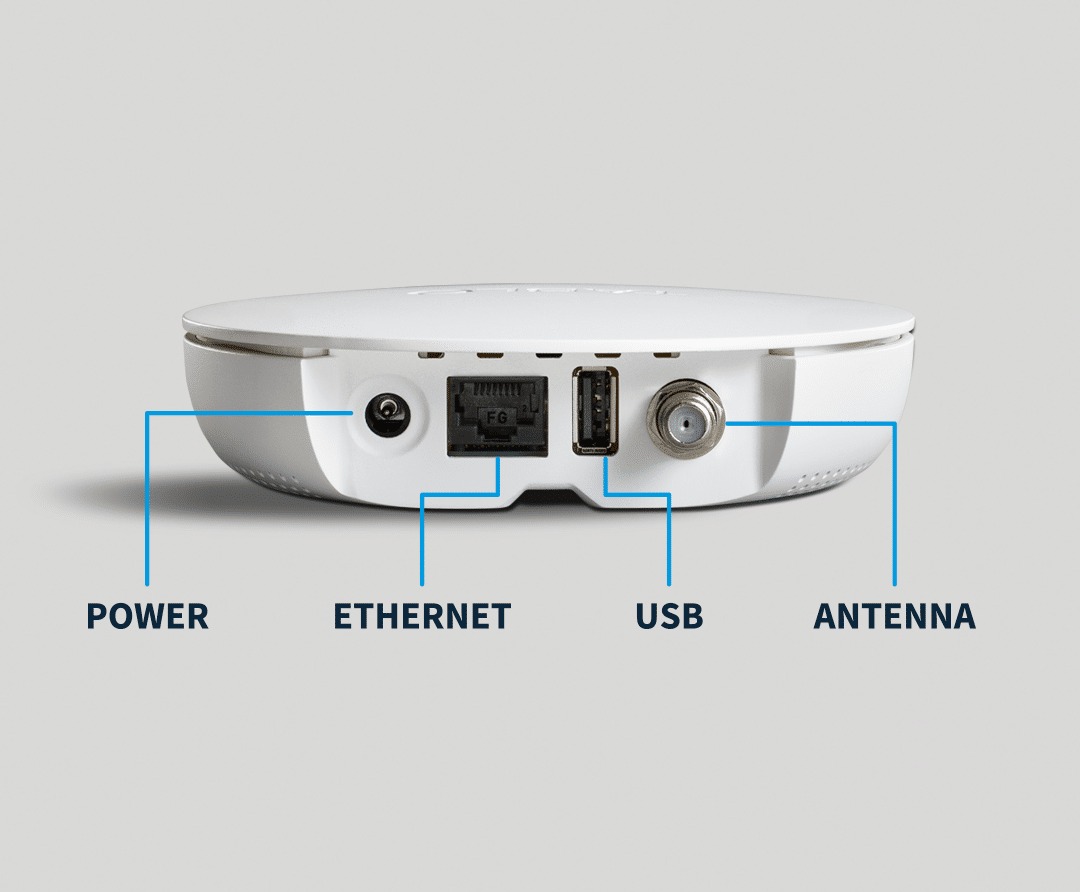
A diagram of the 4th Gen Tablo’s ports.
A diagram of the 4th Gen Tablo’s ports.
Credit:
Tablo
Things to keep in mind
You’re unlikely to get 4K or HDR broadcasts with an antenna. ATSC 3.0, also known as Next Gen TV, enables stations to broadcast in 4K HDR but has been rolling out slowly. Legislation recently proposed by the FCC could further slow things.
In order to watch a 4K or HDR broadcast, you’ll also need an ATSC 3.0 tuner or an ATSC 3.0-equipped TV. The latter is rare. LG, for example, dropped support in 2023 over a patent dispute. You can find a list of ATSC 3.0-certified TVs and converters here.
Realistically, an antenna doesn’t have enough channels to provide sufficient entertainment for many modern households. Sixty percent of antenna owners also subscribe to some sort of streaming service, according to Nielsen.
Further, obstructions like tall buildings and power lines could hurt an antenna’s performance. Another challenge is getting support for multiple TVs in your home. If you want OTA TV in multiple rooms, you either need to buy multiple antennas or set up a way to split the signal (such as by using an old coaxial cable and splitter, running a new coaxial cable, or using an OTA DVR, such as a Tablo or SiliconDust’s HDHomeRun).

Scharon is a Senior Technology Reporter at Ars Technica writing news, reviews, and analysis on consumer gadgets and services. She's been reporting on technology for over 10 years, with bylines at Tom’s Hardware, Channelnomics, and CRN UK.
What's Your Reaction?
 Like
0
Like
0
 Dislike
0
Dislike
0
 Love
0
Love
0
 Funny
0
Funny
0
 Angry
0
Angry
0
 Sad
0
Sad
0
 Wow
0
Wow
0